

Why Your Laptop Deserves a Performance Makeover
When I first unboxed my flagship ultrabook, I was dazzled by its feather‑light chassis and glossy display. It felt like the future was cradled in my hands. Fast forward a few months, and I found myself wrestling with lag during a video call, a dwindling battery that barely lasted three hours, and the nagging fear that tomorrow’s software updates would render my prized device a paperweight.
It’s a story many of us in the PC & laptop space know all too well. We buy cutting‑edge hardware, only to watch it lose its edge sooner than we expect. The good news? A laptop isn’t a static piece of tech—it’s a living platform that you can tune, extend, and future‑proof with a few intentional steps. In this deep dive, I’ll share the practical tweaks, battery‑care rituals, and upgrade strategies that have turned my own laptop from a “nice‑to‑have” into a reliable workhorse.
1. The Hidden Performance Bottlenecks You’re Overlooking
Most users assume that a laptop’s performance is solely dictated by its CPU and RAM specs. While those are the headline numbers, the real culprits behind sluggishness often hide in the shadows.
- Background Services. Windows (or macOS) loves to keep services running—cloud sync, telemetry, auto‑updates. Over time, they pile up and gnaw at CPU cycles.
- Thermal Throttling. The sleek designs that win design awards also trap heat. When temperatures climb, the processor automatically slows down to protect itself.
- Storage Fragmentation (on HDDs). Even a small amount of fragmentation on a traditional spinning drive can add milliseconds to every file read.
- Power Settings. “Balanced” mode might sound safe, but it often caps the CPU at 70‑80% to save juice, sacrificing raw speed.
Start by taking a systematic inventory: open your task manager, identify the top CPU consumers, and disable any non‑essential startup entries. For Windows, the Services.msc console is a goldmine for toggling telemetry. On macOS, the Activity Monitor reveals rogue processes that can be terminated with a right‑click.
2. Mastering Your Laptop’s Battery Lifecycle
Battery anxiety is real. The moment you see the charge icon dip below 20 %, a wave of dread washes over you. However, batteries aren’t the disposable, single‑use components many think they are. They follow a predictable chemistry, and respecting that chemistry can extend their useful life dramatically.
2.1. Adopt a 20‑80 Charging Habit
Charging a lithium‑ion cell to 100 % or draining it to 0 % stresses the electrodes. Aim to keep the charge between 20 % and 80 % whenever possible. Many modern laptops ship with a “Battery Health” mode that caps the charge at 80 %—enable it.
2.2. Keep It Cool
Heat is the enemy of battery longevity. If you regularly work on a lap, consider a laptop stand with built‑in ventilation. Even a modest 5 °C drop in temperature can shave off years of capacity loss.
2.3. Calibrate Quarterly
Every three months, let the battery run down to about 5 % and then charge it uninterrupted to 100 %. This recalibrates the firmware’s estimate of remaining capacity, giving you more accurate battery‑percentage readings.
3. Software Tweaks That Deliver Immediate Gains
Once you’ve tamed the background noise and protected the battery, the next frontier is the operating system itself.
- Trim Startup Programs. Use
msconfig(Windows) orSystem Preferences → Users & Groups → Login Items(macOS) to prune unnecessary launchers. - Switch to High‑Performance Power Plan. In Windows, the “High performance” plan disables many power‑saving throttles. macOS users can toggle “Better Performance” in the Energy Saver settings.
- Enable Fast Startup (Windows). This hybrid boot mode saves the kernel session to disk, cutting boot times in half.
- Update Drivers. The GPU driver, especially for integrated graphics, can have a massive impact on video rendering and web browsing speed.
4. The Upgrade Path: When and How to Add More Muscle
Not every laptop is a sandbox for tinkering, but many modern ultrabooks and business‑class notebooks still offer upgrade slots.
4.1. RAM Expansion
If your device has a free SODIMM slot, add another stick of identical speed and latency. Moving from 8 GB to 16 GB can be a game‑changer for multitasking, especially with memory‑hungry browsers and virtual machines.
4.2. SSD Swaps
Even if you already have an SSD, upgrading to a larger NVMe drive can boost both storage capacity and read/write performance. Look for drives with at least a 3,500 MB/s sequential read speed for the best real‑world gains.
4.3. External GPU (eGPU) Enclosures
For creators who need serious graphics horsepower, an eGPU connected via Thunderbolt 3 can turn a modest laptop into a rendering powerhouse. Just remember to factor in the extra cost and the added desk footprint.
5. Future‑Proofing: Preparing Your Laptop for the AI‑First Era
The next wave of desktop and laptop applications will be powered by AI—think real‑time transcription, intelligent code assistants, and on‑device image generation. To stay ahead, consider these three forward‑looking strategies.
- Allocate Dedicated VRAM. When selecting a laptop, prioritize models with at least 4 GB of VRAM. Even integrated graphics benefit from more memory for AI inference tasks.
- Embrace Cloud‑Hybrid Workflows. Pair your laptop’s local compute with cloud AI services for heavy lifting. A fast, stable Wi‑Fi 6E connection becomes as essential as a powerful CPU.
- Secure the Edge. AI workloads often handle sensitive data. Ensure your device supports hardware‑based encryption (TPM 2.0) and that you keep the OS patched regularly.
If you’re curious about how low‑code platforms are reshaping enterprise tools, check out the insights on low-code mobile development. Understanding that ecosystem can help you decide which AI‑enhanced apps to adopt on your laptop.
6. The Ergonomic Angle: Pairing Performance with Comfort
Performance is meaningless if you’re hunched over a screen for hours. A well‑configured workstation can boost productivity and protect your health.
- External Keyboard & Mouse. A tactile mechanical keyboard reduces finger fatigue, while an ergonomic mouse eases wrist strain.
- Adjustable Stand. Position the screen at eye level to prevent neck strain. Aim for a 90‑degree angle between your forearms and the keyboard.
- Blue‑Light Filters. Use software like f.lux or built‑in night mode to reduce eye fatigue during late‑night sessions.
For a deeper dive into creating functional, calming workspaces, you might enjoy the piece on designing a calm, functional sanctuary. The principles translate seamlessly from a living room to a home office.
7. Maintenance Rituals to Keep Your Laptop Running Like New
Think of your laptop as a high‑performance sports car. Regular maintenance keeps the engine humming.
- Clean the Fans. Dust is the silent enemy. Every six months, open the bottom panel (if user‑serviceable) and use compressed air to clear the fans and vents.
- Update Firmware. BIOS/UEFI updates can improve power management and thermal profiles.
- Run Disk Health Checks. Use
chkdsk(Windows) orDisk Utility(macOS) to spot bad sectors early.
8. When It’s Time to Say Goodbye
Even with the best care, laptops have a finite lifespan—typically 4‑6 years for mainstream models. Signs it’s time to replace include:
- Consistently high temperatures (> 90 °C) under load.
- Battery capacity dropping below 50 % despite good habits.
- Inability to upgrade critical components (RAM/SSD) and performance lagging behind software requirements.
When you decide to upgrade, consider a modular platform that lets you swap out key parts without a full chassis replacement. Brands are slowly embracing this approach, and it aligns perfectly with the sustainability goals many businesses now prioritize.
Conclusion: Your Laptop, Your Rules
We live in an era where a single device can handle video editing, AI‑assisted coding, and high‑definition streaming—all while traveling the world. By taking control of background services, honoring your battery’s chemistry, applying smart software tweaks, and planning thoughtful upgrades, you can extend the useful life of your laptop far beyond the typical upgrade cycle.
Remember, the real power isn’t just in the silicon; it’s in the habits you build around it. Treat your laptop as a partner, not a disposable gadget, and it will reward you with years of reliable performance.

Sanji Patel has dedicated 25 years to the SEO industry. As an expert SEO consultant for news publishers, he emphasizes providing both technical and editorial SEO services to news publishers worldwide. He frequently speaks at conferences and events globally and offers annual guest lectures at local universities.
Related Posts

Modular Laptops: Building a Future‑Ready Workstation That Grows With You
Modular laptops let professionals swap components like GPUs, storage, and batteries, extending devic... Read More
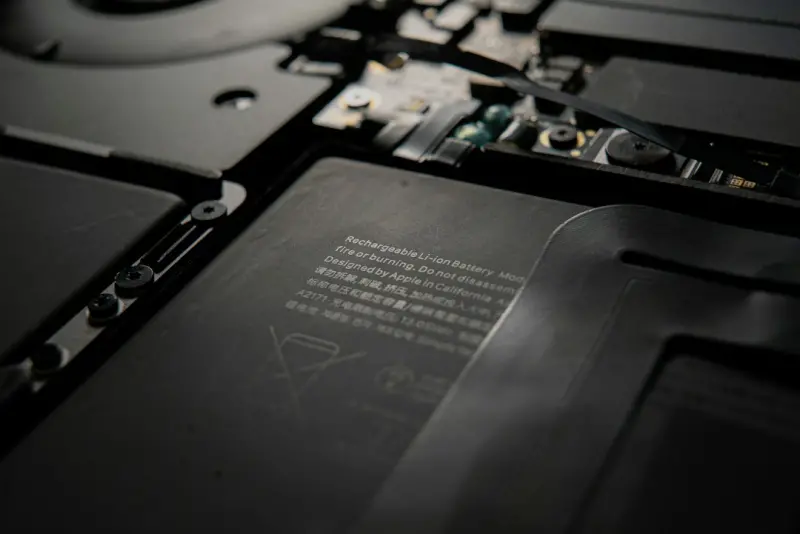
Why Your Laptop’s Battery Isn’t the Enemy Anymore
Explore how modern hardware, AI-driven power management, and simple user habits combine to dramatica... Read More
The Evolution of Eco-Friendly PCs and Laptops: A Sustainable Future
The PC and laptop industry is undergoing a significant shift towards sustainable practices. Learn ab... Read More
Top Posts

The Future of WordPress: How Sustainable Web Development is Revolutionizing the Way We Create Content
The way we build and maintain websites has a significant impact on the environment. Learn how sustainable web development practices can help reduce our carbon f...Read More

Unlocking the Hidden World of Pet Communication: A Modern Guide
Learn to read your pet's subtle signals, design a pet-optimized smart home, and leverage technology for health and happiness—all while building a supportive c...Read More

Rethinking Insurance for the Distributed Workforce
A deep dive into why traditional policies miss the mark for remote workers and how modular, data‑driven coverage can safeguard distributed teams while deliver...Read More

When Boarding Becomes Brainstorming: Turning Transit Time into Creative Capital
Learn to treat every flight, train, or ferry ride as a mobile lab, using simple tools and a structured mindset to convert transit moments into actionable insigh...Read More
0 Comments
Post Comment
You will need to Login or Register to comment on this post!